
Build Your Own Local AI Computer Network
Free Starter Installation Checklist
Thinking about building your own local AI network but not sure where to start?
We've put together this free starter checklist to accompany our YouTube video, Building A Local AI Network: Connecting Multiple Computers Together.
When you start looking into local AI, you'll quickly come across technical terms such as GPUs, VRAM, IP addresses, drivers, AI models and remote access. It can all sound rather complicated, particularly if you've never attempted anything like this before.
But here's something important we've discovered while building our own AI network.
You don't need to understand everything before you start. You can use AI to guide you through the installation process.
That's exactly what we've been doing.
Our own network consists of four computers, each with different hardware and responsibilities. But you don't need four computers, expensive graphics cards or exactly the same software that we're using.
You can start with the equipment you already own.
This checklist is designed to help you plan, test and build your own local AI system, one stage at a time.
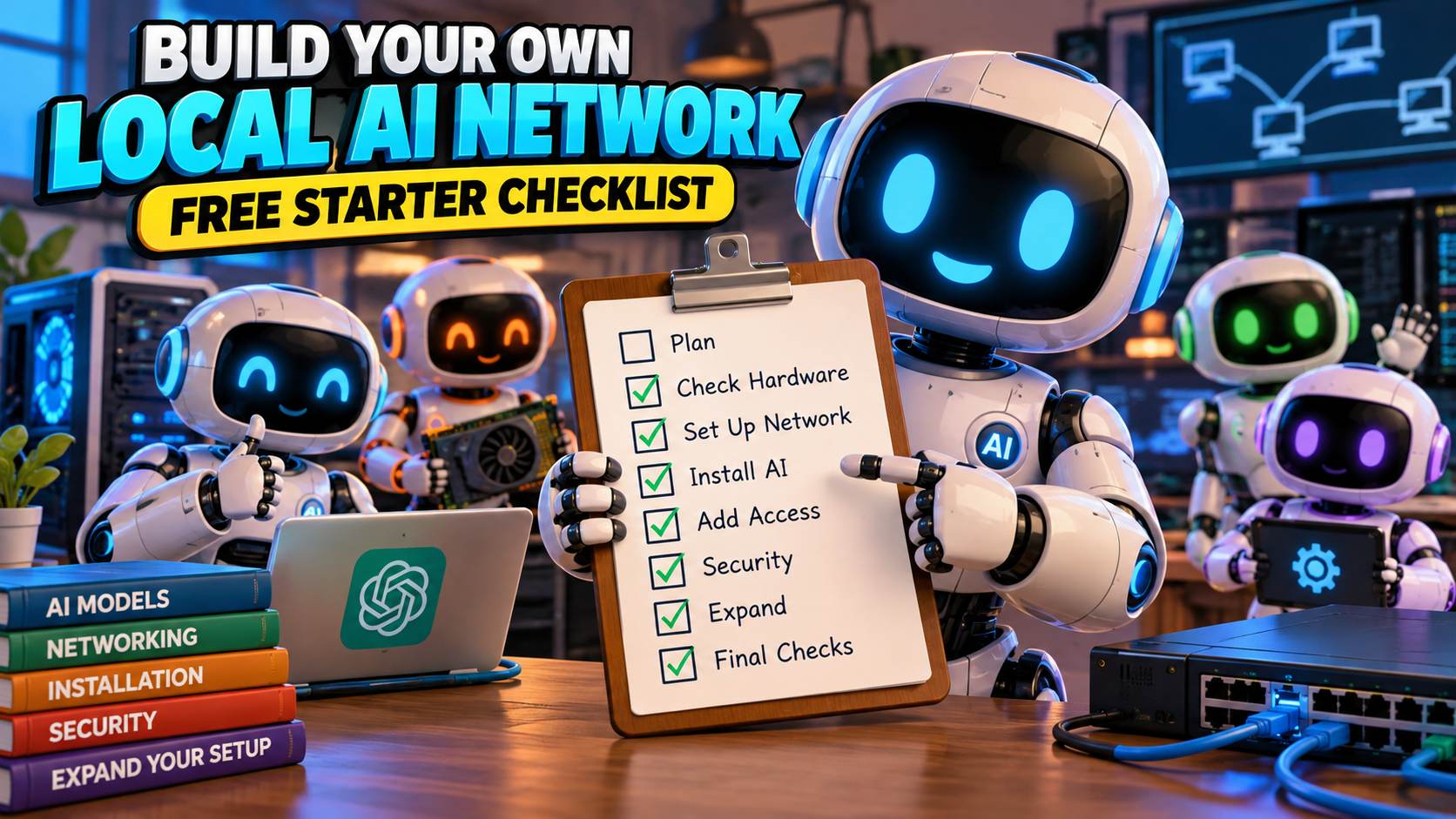
How To Use This Checklist
Tick each item when complete. If you are unsure about a step, give this checklist to ChatGPT, describe your own hardware and ask it to research a suitable approach.
You do not need the same equipment or software that we use.
1. Decide What You Want Your AI To Do
☐ Write down your first practical use case: chat, coding, images, video, transcription or automation.
☐ Decide whether to start with one computer or connect several.
☐ List the computers you already own before buying anything.
☐ Record each computer's operating system, CPU, RAM, graphics card and video memory (VRAM).
☐ Check power, cooling, available storage and whether each machine can stay switched on safely.
2. Check Your Hardware And Software Compatibility
☐ Ask AI to research the exact GPU model, driver support and compatible AI software from current documentation.
☐ Check whether your chosen model fits available GPU memory, and what happens if it does not.
☐ Check your operating system is supported by the software you plan to use.
☐ Confirm you have sufficient disk space for the model files, applications and working data.
☐ Choose a small, compatible model for your first test rather than downloading everything.
3. Set Up The Network (If Using Multiple Computers)
☐ Connect computers using Ethernet or a reliable existing network; a special router is not required.
☐ Verify that each computer has an IP address and can reach the others it needs to contact.
☐ Choose which computer will run your main AI interface or act as the controller.
☐ Check that wired or Wi-Fi devices you will use for monitoring can reach the intended interface.
☐ Plan how to keep your AI machines separate from personal devices and sensitive files.
4. Install And Test Your First Local AI
☐ Install the operating system updates and verified GPU drivers required for your setup.
☐ Choose a suitable model-running application for your hardware and operating system.
☐ Download a compatible model from a trusted source and follow its installation instructions.
☐ Run a simple test prompt and confirm the model responds locally.
☐ Record the software versions and settings that worked so you can repeat the setup.
5. Add A Simple Way To Access It
☐ Decide how you will interact with the AI: desktop application, browser-based interface or both.
☐ If using a browser interface, confirm it works on your own computer first.
☐ Test access from another device on your local network, only if you need it.
☐ Remember: a web browser can open an interface hosted on your local network; it does not have to connect to a public website.
☐ Set a login and restrict network access before sharing the interface with other devices.
6. Remote Access, Permissions And Security
☐ Enable remote desktop or another supported remote-access tool only on machines that need it.
☐ Use unique accounts and strong passwords; give AI tools only the permissions required for their tasks.
☐ Keep firewalls enabled and allow only the specific connections you need.
☐ Do not expose remote desktop, model servers or local AI interfaces directly to the public internet.
☐ If access from outside your premises is required, research and configure a secure VPN or equivalent.
☐ Verify that AI-controlled machines cannot access your private computers or sensitive files without permission.
7. Expand Only After The First System Works
☐ If using additional computers, confirm each can be reached and controlled as intended.
☐ Assign a job to each machine based on what its hardware can actually run.
☐ Install and test one additional service or model at a time.
☐ Test a complete small task from instruction through to finished result.
☐ Keep a record of errors, fixes and working configurations; back up settings and important data.
8. Final Working-System Checks
☐ My AI responds reliably to a basic task.
☐ The required machines can communicate; unnecessary connections are blocked.
☐ I can access the system from my normal computer or device.
☐ I know how to restart services and recover after a reboot.
☐ I have a clear next task for my AI system to perform.
Copy This Into ChatGPT To Create Your Own Plan
One of the easiest ways to get started is to give ChatGPT or another cloud based AI programme the checklist and ask it to help you work through the installation.
You can copy the following instructions directly into ChatGPT.
Copy and paste this prompt:
I want to build a local AI system using my own hardware. Use this checklist to create a step-by-step installation plan. First help me identify my computer specifications and the jobs I want the AI to do. Research current official compatibility information before recommending software, drivers or models. Do not assume I have particular hardware. Explain technical terms simply, give me one step at a time and tell me how to test each step before moving on. Keep security boundaries in place.
You can also upload the PDF checklist into ChatGPT so it can refer to the individual steps as you work through them.
What Comes Next?
Once you've got your first local AI system working, you can start exploring what else it can do.
You might connect additional computers, experiment with different models, generate graphics and videos, write software or automate everyday business tasks.
You don't have to build everything at once.
We're documenting our own experience as we develop a network of AI computers capable of working together. We'll be sharing what works, the problems we encounter and the lessons we learn along the way.
Watch Our Local AI Video Series
Video 1: Our Local AI Network Project
Find out what we're building, why we're building it and what we hope to achieve.
Video 2: Building A Local AI Network: Connecting Multiple Computers Together
An overview of the installation process and how we've been using AI to help us connect our computers.
Download Your Free Printable Checklist
Want to keep a copy beside your computer while you're setting everything up?
Download the printable version of our Local AI Network Starter Installation Checklist.
[DOWNLOAD THE FREE PDF CHECKLIST]
You can print it, tick off each stage and keep a record of your progress.
Mark Timberlake | SME Heroes